Posts

Showing posts with the label VXDIAG VCX NANO

Jaguar & Land Rover JLR diagnostic tool Buying Guide
Image
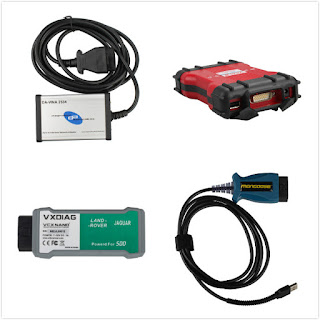
Here is the buying guide with comparison of VXDIAG VCX NANO for Jaguar & Land Rover OEM diagnostic tool, JLR Mongoose cable, VCM2 scanner and DA-VINA J2534 interface. 1) price: vxdiag vcx nano JLR: €108 (best choice for diagnosis and ecu & key programming) Mongoose cable clone: €48 (best solution of diagnosis) JLR VCM2 chinese: €189 DA-VINA J2534: €100 1) workable with the genuine: Mongoose & DA-VINDA interfaces work with the original JLR SDD IDS software. 2) Functions: Wi-Fi: vxdiag vcx nano, vcm 2 Basic diagnosis: all ok Key making: vcm2, vxdiag nano, DA-VINA Ecu programming: vcm2, vxdiag nano, DA-VINA Offline programming: JLR SDD V141 (advised to use with VXDIAG VCX NANO diagnostic tool.) 3) New cars solution: If you need to new Jaguar and Land Rover model up to 2014 year, DA dongle 2534 or Mongoose pro which version 139.14 up are recommended. Now the SDD version 145 is the one tested without any issues by thousands of people. ...

Highlights of VXDIAG VCX NANO products

Image
Arrival of goods (AOG) at obdexpress.co.uk. The hot VXDIAG VCX NANO scanners have arrived again. Enjoy! Highlights of VXDIAG VCX NANO products: - Better price - Software activated, tested without issues, safe to use - Hardware of high quality VXDIAG VCX NANO Ford / Mazda with IDS v100 Run as the Ford VCM2, same function but lower price WIFI version -  €99 http://www.obdexpress.co.uk/wholesale/vxdiag-vcx-nano-for-ford-mazda-2-in-1-ids.html Non-wifi version -  €90 http://www.obdexpress.co.uk/wholesale/wifi-version-vxdiag-vcx-nano-for-ford-mazda-ids.html Note:  VCM2  vs VXDIAG VCX NANO clone vcm 2 & original vxdiag come with the  same software  but from  different factories --> different brands&firmware&driver--> different price:  vxdiag usually cheaper )   VXDIAG VCX NANO Toyota with Techstream TIS V10.30.029 Support diagnostic tests, programming, custom functions, key programming, etc....

Mazda IDS 99 coming soon

Image
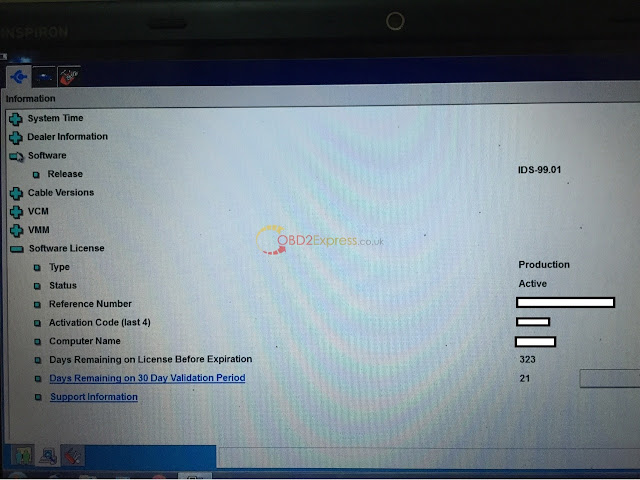
Mazda IDS 99.00 and 99.01 is developed right now. and here is the software we share with all to test on VCM 2 and VXDIAG VCX NANO for Mazda. free download IDS-99.01_Full.exe Mazda IDS 99.00.exe you can free download and try on the following products, but you maybe take risks to do this: VCM II clone (quality A) VXDIAG VCX NANO OEM Diagnostic Tool for Ford / Mazda VXDIAG MULTI Diagnostic Tool 4 in 1 here, we are pleased to learn your test results and will report our results by obd2express technicians for all.

VXDIAG NANO vs VCM II, Which better?

Image
Recently, many complained their confusion to buy a diagnostic tool for Ford or Mazda, for there is a full chip high quality VCM II for nearly 180$ (SP177-C) and there is the new VXDIAG VCX NANO for only about 100$. The price difference is ridiculous and sellers claim they both do the same thing. *similarity: clone vcm 2 & original vxdiag come with the  same software -->  thus the same function & vehicle coverage & language support & O/S requirement *difference: vcm ii - clone vs. vxdiag - original ( different factories--> different brands&firmware--> different price : vxdiag usually cheaper) different drivers *detailed similarities and differences - VCM II vs. VXDIAG NANO Products VCM 2 VXDIAG VCX NANO for  FORD/ MAZDA Diagram Differences Origina or not Clone Original Price  $180.83 $109 Drivers Drivers are installed when software install...

How to install GDS 2 for VXDIAG VCX NANO GM

Image
This is the GDS 2 installation instruction for wifi scanner VXDIAG VCX NANO Device for GM/OPEL . Tools for use: VXDIAG VCX NANO for GM/OPEL wireless diagnostic tool Laptop with Win7 64bit /Win8 64bit system Video guide: https://www.youtube.com/watch?v=F1LHx4RJwUY Steps: Step 1 Install VMware Step 2 Set COM Port Step 3 Install VXDIAG GM Driver Step 4 Diagnose via USB wired connection on 2009 Buick Regal Step 5 Diagnose via WIFI on 2010 Buick Excel Step 1 Install VMware Open GDS2 software CD Open "VMware-player-6.0.6-2700073" and install VMware-player Install wizard for VMware Player Click Next Accept license agreement Click Next Click Next Tick “Check for product updates on startup”, click Next Click Next, Create desktop shortcuts, click Next Press Continue Setup Wizard complete, press Finish Copy GDS2 VM folder on CD to Local Disk (E;) Open VMware Player on desktop Open a Virtual Machine->select E:/GDS2 VM->Win_XP_GDS2_11_2014 Select Play ...